Progress Monitoring and Progress Reports (UPDATED)
- The Progress Monitoring (PM) feature will allow the user to select which goals and objectives to monitor and enter data for which will create charts and graphs that can be printed to share with parents.
- LEAs who choose to use the PM feature may want to create internal policies and procedures for use of the feature.
- Data should be numerical. If grade equivalent was used to measure progress, the data entered should be in grade equivalent format including decimals (Example: 1.5 for first grade five months.)
- Develop a progress note that will provide an explanation of the student’s progress data. The progress note must be meaningful and provide more information about the numerical score.
- The first data point entered will be the baseline for the goal/objective. All additional data entered will be data points.
- This short video will demonstrate how to progress monitor goals and objectives in GO-IEP. Closed captioning is available.
Link to short video: https://url.gadoe.org/wi7f
Don't Forget
- If you see a message telling you the feature must be enabled, this feature has yet not been turned on for your district. Talk to your local GO-IEP administrator for more information. This feature must be enabled by a System Admin in GO-IEP.
- Only goals/objectives that include numerical mastery criteria under which the student will demonstrate mastery can be selected for Progress Monitoring.
- Once all progress monitoring for a selected goal or objective has been completed, the goal will need to be archived.
Progress Monitoring Data and the Progress Report:
- For the goals and objectives that have data added on the Progress Monitoring tab, the entered data will prepopulate into the Progress Report.
- For all other goals and objectives, data and notes will need to be added through the Progress Report Dashboard.

Adding Notes/Data in the Progress Report:
- Once the student has been selected on the Progress Report Dashboard, select the EDIT icon to add progress notes for each goal or objective.
- Once all goals and objectives have notes/data entered (and the frequency period is within a week of ending), a FINALIZE button will show at the bottom of the page.
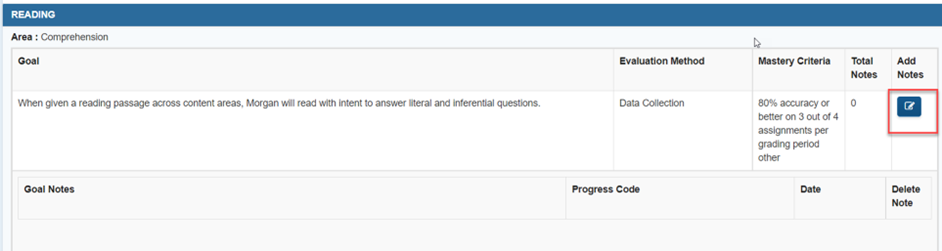
Entering Progress Notes:
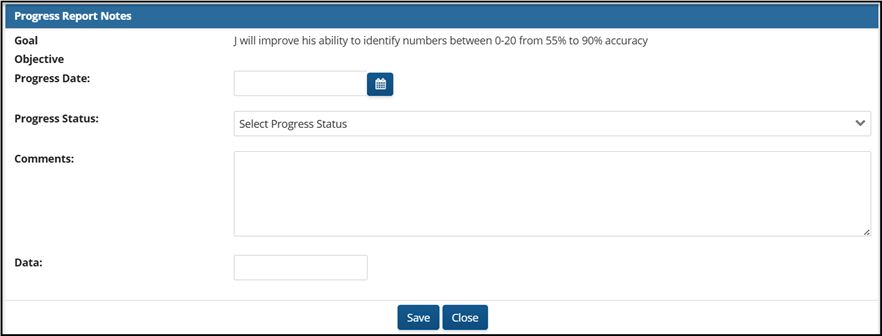
- Add the Progress Date, a Progress Status, Comments, and Data to each goal or objective at least one time per progress period.
- It does not matter who enters the note/data. For a student with more than one disability area, a therapist who is a Team Member for the student, might add a note/data for a therapy goal, while the case manager might add a note for a classroom goal.
- Remember to save the progress note.
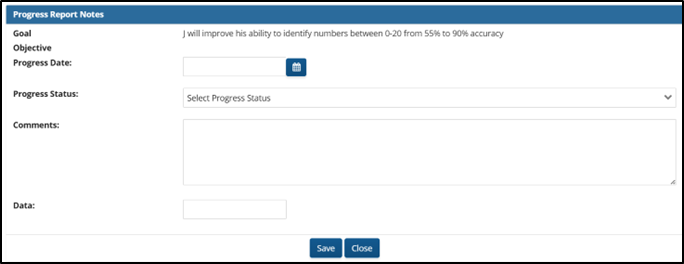
Entering Progress Notes: Date
The Progress Date entered MUST be within the progress period dates and should reflect the date the data was collected.

Entering Progress Notes: Progress Code
One Progress status code MUST be selected from the drop-down menu to show where the student’s progress is in relation to the goal/objective’s mastery criteria.

Entering Progress Notes: Comments
In the Comments box, enter notes to explain specifically how the student is performing on the goal/objective in relation to the numerical data.
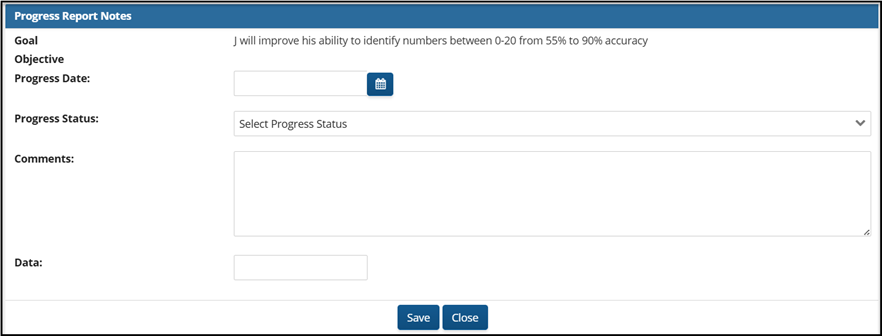
Entering Progress Notes: Data
In the data area, enter the numerical data. The Data field is optional in the Progress Report, however, if numerical data is not entered in the Data field, specific data should be included in the comments.
Viewing Saved Progress Notes
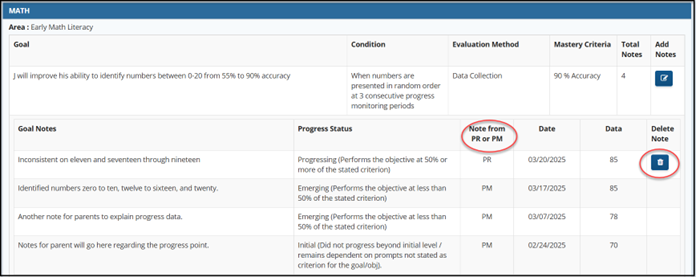
- Once saved, all progress notes are shown in the Goal Notes section under the goal. If errors are found, the note can be deleted using the trash can icon.
- Goal notes can only be deleted by the person who added the note.
- Goal notes from Progress Monitoring can only be deleted on the Progress Monitoring tab.
Printing a Draft Progress Report
- A draft of the Progress Report can be printed using the Print Draft PR button located in the top right corner of the Progress Report Student Details page.
- This can be printed at any time to send to the parent with report cards or as requested outside of the end of the progress period.
- The draft document will have a DRAFT watermark. It should not be used to replace sending the finalized Progress Report to the parent at the end of the progress period.
Completing the Progress Report
Before a Progress Report can be finalized BOTH of the following MUST occur:
- ALL goals/objectives have at least 1 Progress Note.
- The Progress Report Period end date is within 1 week of the current date. (The progress report has turned yellow.) OR a new IEP Annual Review or IEP Amendment has been created that will restart the Progress Reporting Period.
When BOTH have happened, a Finalize Progress Report button will be available to complete the Progress Report.
Finalizing the Progress Report
- Printing the completed Progress Report to send to parents is the responsibility of the Case Manager. Therefore, only case managers have the rights to finalize Progress Reports. (System Admins can also finalize the Progress Report, if they are added as a Team Member for the student in GO-IEP.)
- Progress Reports cannot be finalized until a progress note has been entered for all Goals and Objectives.
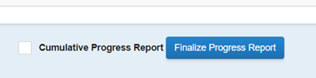
- When a progress note has been entered for all goals and objectives, the progress report actions section will appear. Program users can select the “Cumulative Progress Report" box if they want all historical comments from previous Progress Reports for the active IEP to print on the current report. Otherwise, program users can select the blue " Finalize Progress Report" button to create the pdf document for printing.
- Note: Case Managers will not be allowed to Finalize the Progress Report until the last week of the Frequency Period, but data can still be entered throughout the Frequency Period. The "Finalize Progress Report" button will not show for the current progress report if there are incomplete progress reports on the dashboard with earlier frequency periods. Progress Reports must be finalized in sequential date order.
Printing the Finalized Progress Report
- Once a progress report has been created, it becomes available at the bottom of the Progress Reports Dashboard for Case Managers.
- To print the report, the Case Manager would select the "Download Report" link.
- Only the most current progress report is available at the bottom of the Progress Reports Dashboard.

Can Team Members Print the Progress Report?
All completed Progress Reports are filed under the Progress Reported tab for the individual student after the report has been created by the Case Manager. If can be printed by anyone with access to the student’s case. It can also be reopened by a System Admin, if needed, for corrections and generated again.

Video Demonstration for Progress Reporting
This short video will demonstrate how to create a Progress Report for goals and objectives in GO-IEP. Closed captioning is available.
Link to the Progress Report Video:
https://lor2.gadoe.org/gadoe/items/15ebca64-e6c4-447a-a5de-e2109fc77f72/1/?.vi=file&attachment.uuid=c8ac0304-380b-4caf-a25a-de054eb65d05
Progress Report when a new Annual Review or IEP Amendment is Started
If the date of the Annual Review or Amendment is greater than the halfway through the progress reporting period:
- Add notes for all goals and objectives and finalize the progress report.
- Even though it is still green, the Finalize Progress Report button will be available.
- If the date of the Annual Review or Amendment is less than halfway through the progress reporting period:
- Either complete and finalize the progress report OR inactivate the progress report.
- Even though it is still green, the Finalize Progress Report button will be available once all notes are added.
- A button to Inactivate will be available in the same area as the Finalize button.
Note: ALL Progress Reports MUST be either Completed/Finalized or Inactivated before the IEP can be finalized. You will get an audit in the IEP to prompt you to do this.