SE Secondary Transition Application
Secondary Transition Plan Review
Participation
LEAs with less than 100% on Initial Transition Planning Review in CFM or a previous Secondary Transition are required to participate. Please work with your District Liaison to obtain the dates for this school year. Below is a list of the events in the process.
- LEAs receive notice to participate.
- Dashboard opens for LEAs who are required to participate in the Secondary Transition Plan application.
- Deadline to upload files.
- GaDOE Verification Review
- LEA Notification of Compliance Status
LEAs with <100% compliance will be required to correct isolated findings of noncompliance (Prong 1) and demonstrate systemic compliance (Prong 2). Prong 1 and Prong 2 dates are subject to change based on need.
Directions for Completing Transition Planning Review
Screenshot of LEAs participating in the Secondary Transition Plan Review
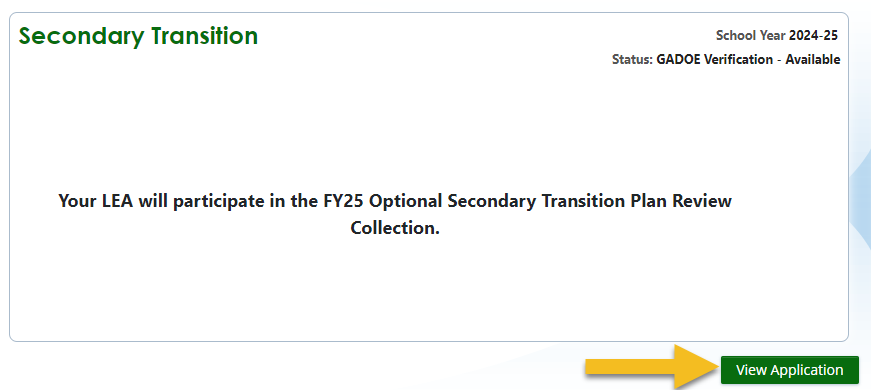
LEAs participating in the Secondary Transition plan review will have the statement, “Your LEA will participate in the FYXX Secondary Transition Plan review collection.” showing on their SE application dashboard.
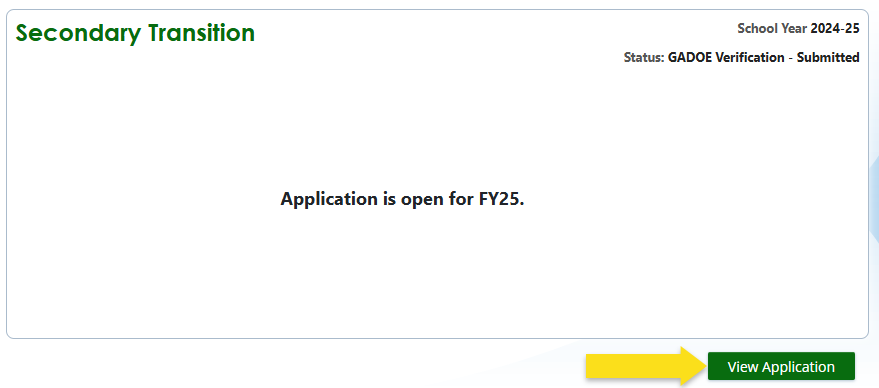
When the application opens, participating LEA’s will see, “Application is open for FYXX.”
Screenshot of a LEA participating in Secondary Transition
Screenshot of LEAs not participating in the Secondary Transition
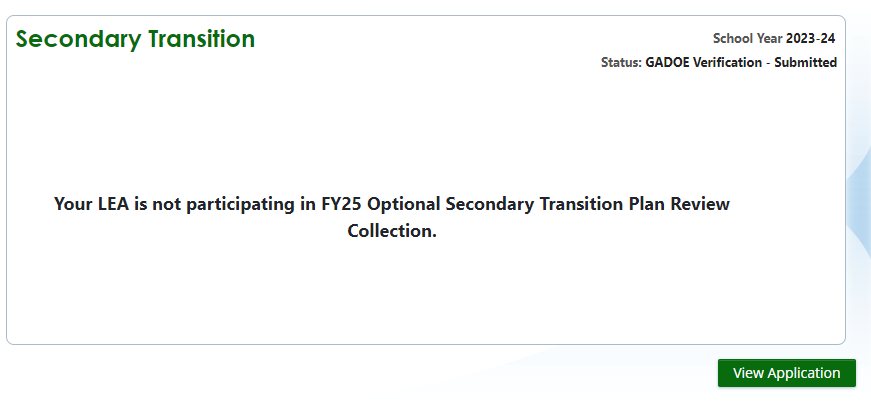
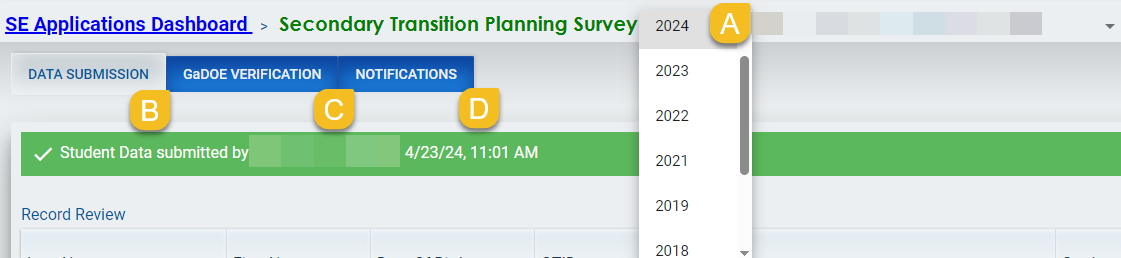
All LEAs, including LEAs not participating in this year’s Secondary Transition Plan Review, can enter the application and review any previous year’s submissions. There is a dropdown (A) with the years listed available for selection. Once the year is selected, the LEA can see the data submission (B) (i.e., transition plans submitted), GaDOE Verification (C) (i.e., results each individual plan) and notification (D) (i.e., any email or letter sent regarding the submission results).
Screenshot of Previous Submissions
Submitting Plans for Review
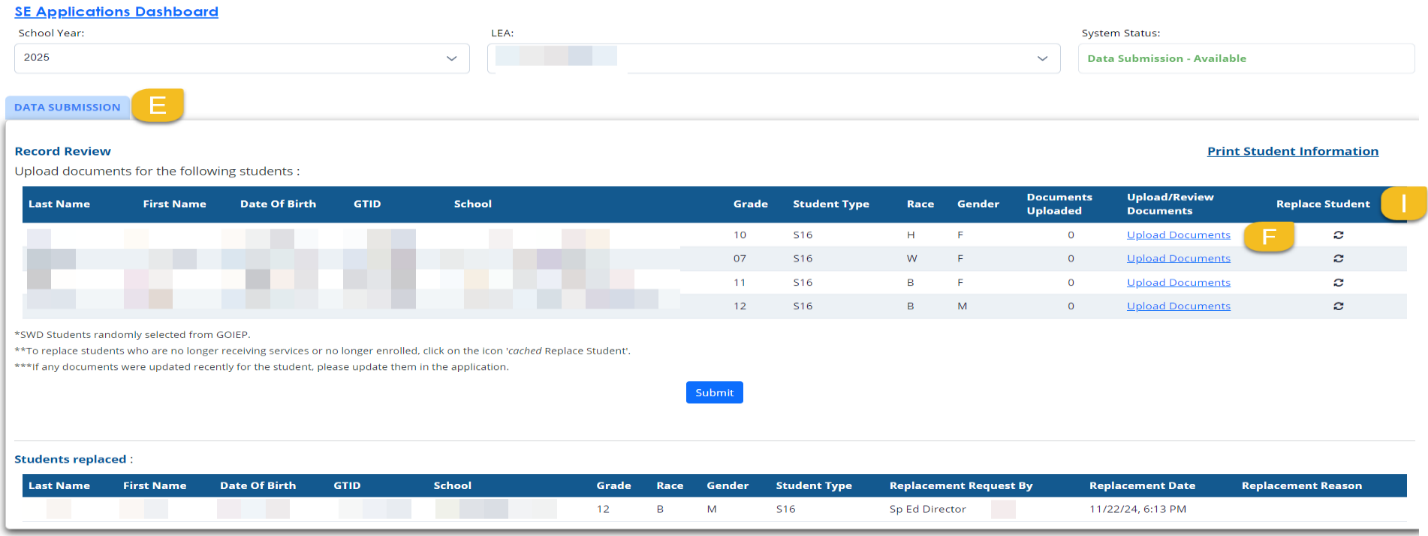
After selecting “View Application,” the application will open to reveal the list of names with demographic information (E). Students are randomly selected from GO-IEP if the LEA uses GO-IEP or SR if the LEA does not.
For each student listed, the LEA should review the plans using the Transition Compliance Rubric to ensure that all required elements are present and 100% compliant. If you find an aspect of the plan that is less than 100% compliant, convene an IEP team to amend the student’s transition plan to make necessary corrections.
Five (5) students per LEA will be selected if available. The selected students will be at least 16 years of age regardless of grade placement. If fewer than 5 students who are 16 or older are available, students who are in high school but younger than 16 will be selected for a review of the transition plan. Students younger than 16 will not be included in the Indicator 13 data reported to the Office of Special Education Programs (OSEP).
To upload the student’s transition plans, select the “up arrow” (F) under the heading “Upload/Review Documents.”
Upload/Review Documents
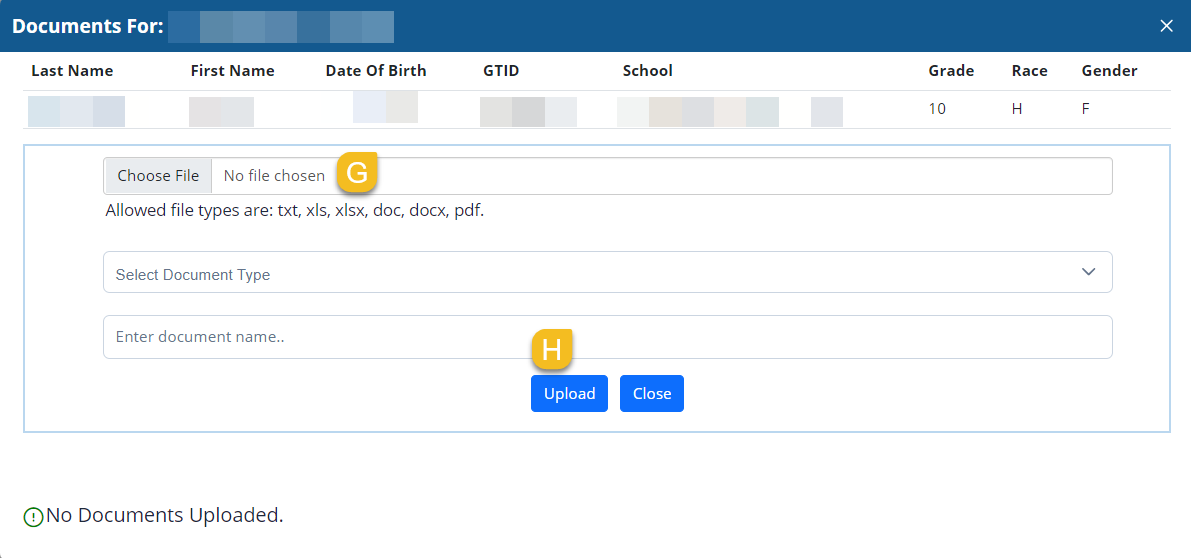
Select “Choose File” (G) to browse and locate the documents on your computer. Enter the name of the document and select “Upload” (H).
Screenshot for Student File Upload
GO-IEP LEAs will have the pdf of the active IEP auto-upload for each student auto in the application at the time the application is opened. If that IEP is amended or a new Annual Review is developed prior to submission due date, please upload the most current file in the Secondary Transition application to the Dashboard. If any student is replaced in the GO-IEP LEA, a copy of the student’s IEP from GO-IEP will need to be manually uploaded to the Secondary Transition application.
Please note: Because students may withdraw from your LEA or exit special education (no longer eligible or parental revocation), the Secondary Transition plan review allows LEAs to request a replacement student for any student who has withdrawn or exited.
You may not request a replacement student because his/her transition plan is not compliant. You will be asked to provide the withdrawal date or exit date for the student.
Replacing Students
If a student on your list has withdrawn or exited special education:
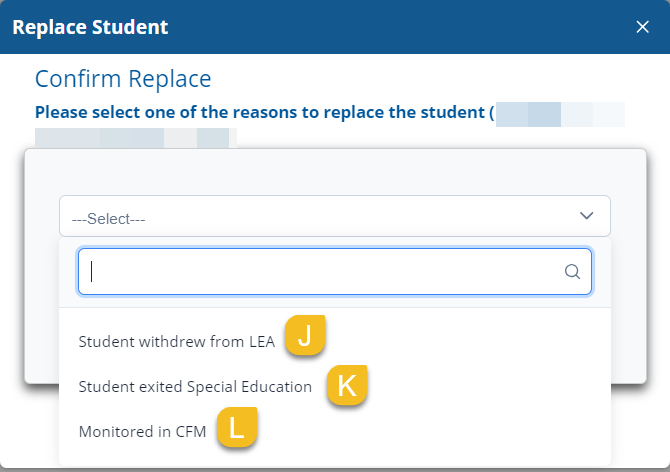
- Select the icon (two arrows in a circle) under “Replace Student.” (I)
- Select one of the three options in the dropdown box.
- Student withdrew from LEA (J)
- Enter the date of withdrawal.
- Student exited Special Education (K)
- Enter the date of exit.
- Monitored in CFM (L)
- Select replace.
Screenshot of Replacing a Student
Confirming Replacement
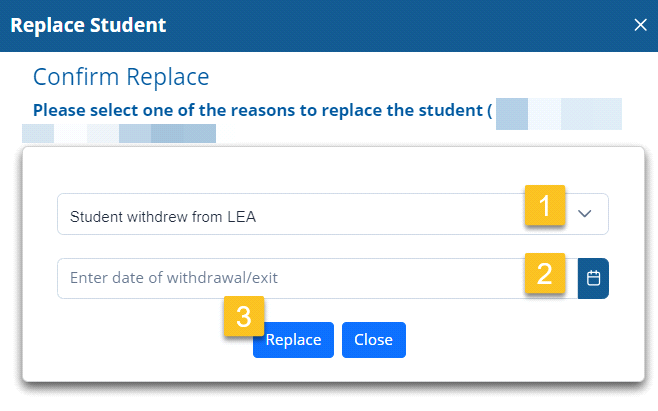
Select one of the reasons to replace the student.
- Student withdrew from LEA (1) OR Student exited Special Education (1)
- Enter the withdrawal or exit date (2).
- Select “Replace (3).”
OR. If you select Monitored in CFM (L), no withdrawal or exit date needs to be entered.
Replaced students will be listed at the bottom with the replaced reason.
Screenshot of Replace Student entry