SE Preschool Outcomes Application
Viewing and Completing Preschool Outcomes Application
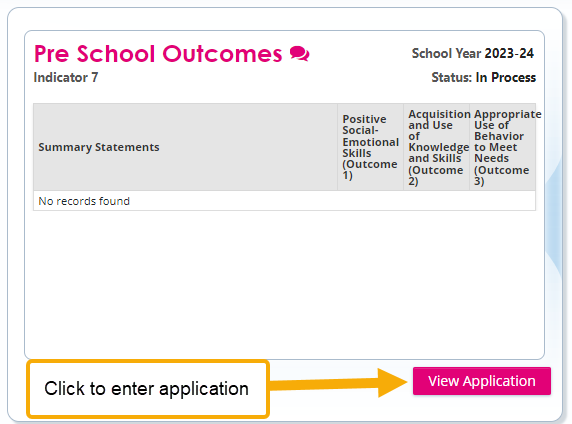
In the SE Applications Dashboard, scroll down to the Preschool Outcomes tile and select “View Application” to enter the Preschool Outcomes Application.
Screenshot of Preschool Outcomes SE Application
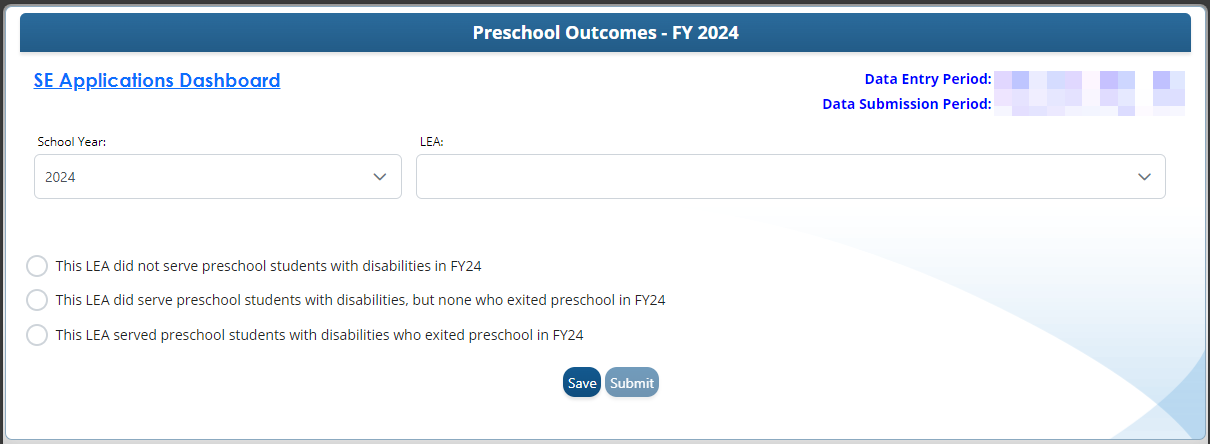
The Preschool Outcomes Survey starts with one question. Every LEA must complete and submit the survey. Select one of the three radio buttons shown below that appear inside the application and then ‘Submit.’
- This LEA did not serve preschool students with disabilities in FYXX.
- This LEA did serve preschool students with disabilities, but no one exited preschool in FYXX.
- This LEA served preschool students with disabilities who exited preschool in FYXX.
Screenshot of Preschool Outcomes landing page
LEAs with No Preschool Exits
- If the first or second radio buttons are chosen, select ‘Save’ and then ‘Submit.”
- Failure to submit on time will result in a late submission and will impact on the LEA’s Timely and Accurate score.
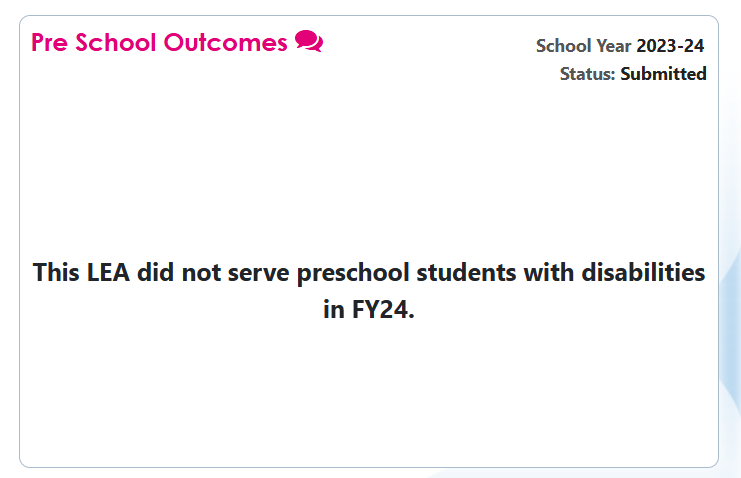
- The Preschool Outcomes tile will then display a message that says, “This LEA did not serve preschool students with disabilities” or “This LEA did serve preschool students with disabilities, but none who exited preschool in FYXX.”
- No further action is needed.
Screenshot of Preschool Outcomes SE Application tile
Reporting Preschool Outcomes Data
If your LEA served students who exited preschool, select the third radio button, and save.
- The LEA must submit the survey during the data submission period.
- Failure to submit on time will result in a late submission and will impact on the LEA’s Timely and Accurate score.
The template for data entry will appear as shown below.
Screenshot Preschool Outcomes Data Entry Form
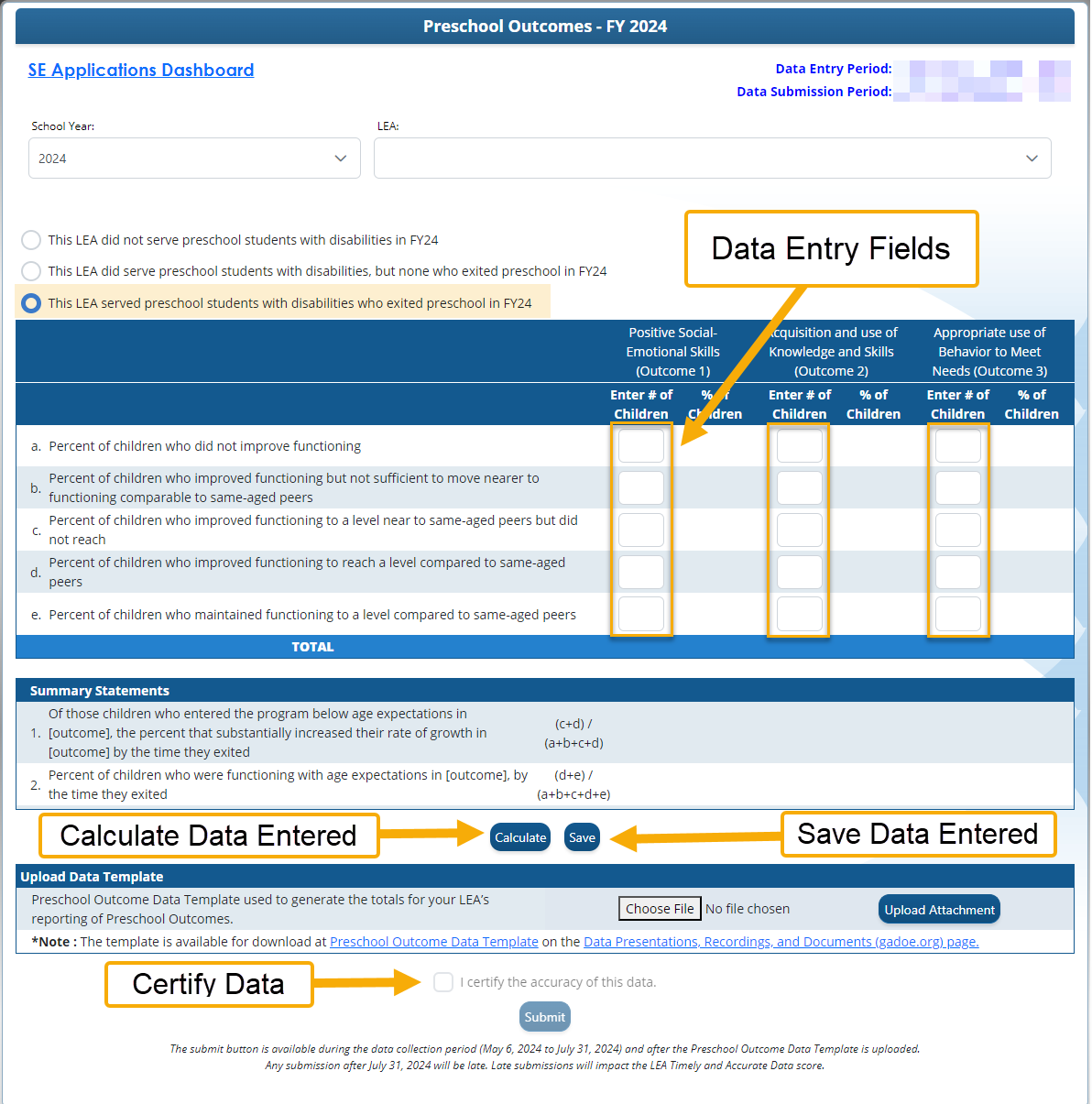
The survey may be completed in more than one sitting. Select “Save” to retain data entered. You must enter valid data in all required fields to successfully calculate your data. The Summary Data for Outcome 1 a-e, 2 a-e, and 3 a-e comes from Tab 4 of the Preschool Outcomes template if entered correctly. Summary statements will automatically be calculated.
After entering and calculating all data, select the statement: “I certify the accuracy of this data.”
Upload Preschool Outcomes Template
In the upload Data Template panel, upload the Preschool Outcomes Template for the current year.
Select “Choose file,” then browse and select the Excel Preschool Outcomes Template used to enter the data. Select the “Upload Attachment” button to upload the Preschool Outcomes Template Excel file. Important: only an Excel format file can be uploaded!
Screenshot of Upload Data Template

Timely Submission of the Preschool Outcomes Data
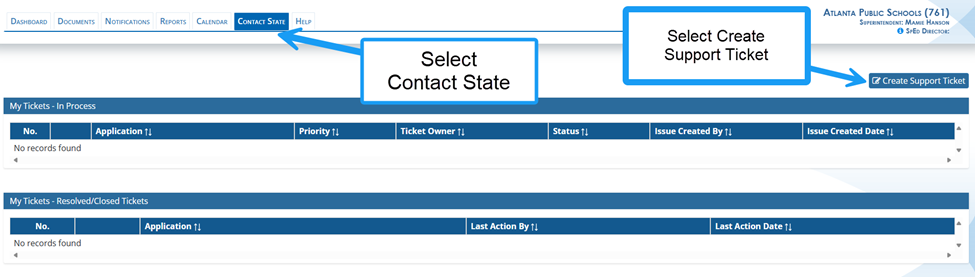
The Preschool Survey can be accessed and saved multiple times. Once data is submitted, it is not editable. If the LEA needs to update information submitted prior to July 31, the LEA may submit a ticket using the SE Applications Dashboard: Contact State” feature and ask GaDOE to reopen the application. Any data submitted after July 31 cannot be reopened and changed.
Submission Troubleshooting: Warnings and Errors
You will not be able to submit until there is (1) valid preschool outcome data, (2) an uploaded Preschool Outcomes Template, and (3) verification of the data certification identified by checking the certification box. If you receive an error message, fix the error, and try to resubmit it.
Verification of LEA Submission
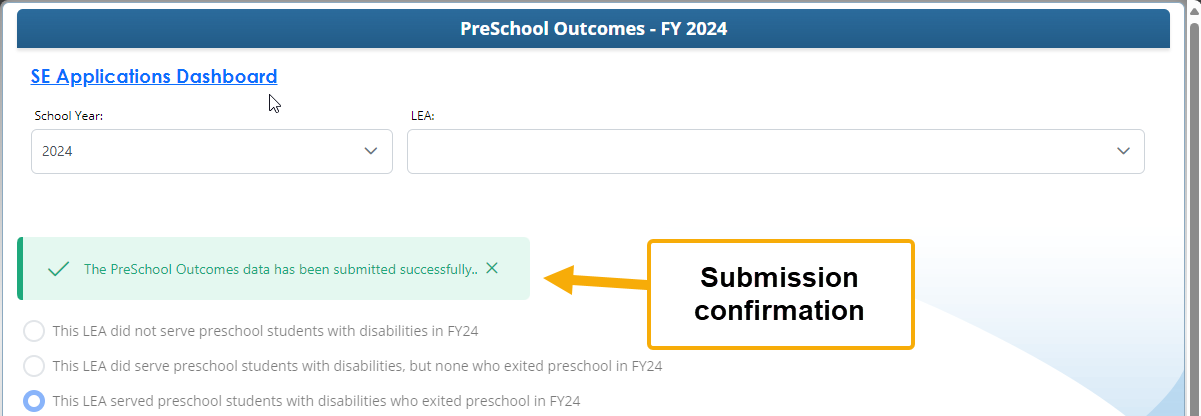
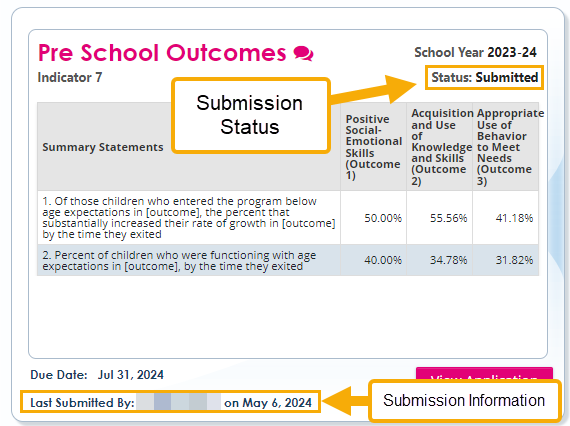
Verify submission of Preschool Outcomes by checking for a green pop-up notification that reads “Preschool Outcomes data has been submitted successfully.” The Preschool Outcomes Tile will also display status as “Submitted” after a successful submission.
Any submission after July 31 will be late. Late submissions will impact the LEA’s Timely and Accurate Data score.
Successful Submission Notification Inside the Preschool Outcome Application
Screenshot of Submitted Status on the Preschool Outcomes tile
Contact Barbara Ross at barbara.ross@doe.k12.ga.us for questions regarding Preschool Programming.
Use the Contact State ticket system inside of the SE Dashboard Applications if you need assistance.
Screenshot of Creating a ticket in Contact State
Contact Dominique Donaldson at dominique.donaldson@doe.k12.ga.us or Carol Sprague at carol.sprague@doe.k12.ga.us for questions regarding Preschool Data Entry in SE Applications.