SE Applications Dashboard Access
The SE Applications Dashboard is accessed from the Georgia Department of Education (GaDOE) website. Users must first log into the MyGaDOE Web Portal at http://www.gadoe.org. To submit data, you must be provisioned by the LEA Security Officer with the Special Education Director role. If you have questions about becoming provisioned, please contact the Information Systems Customer Support Center by emailing dticket@doe.k12.ga.us or calling 1-800-869-1011.
The Portal will display the current provisioned Superintendent and Special Education Director in the top right corner of the SE Applications Dashboard.

The message below will be displayed if you select the blue circle with i ( ).
).
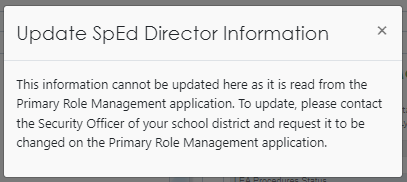
To change the assigned primary Special Education Director Role in the SE Applications Dashboard:
- First, the Special Education Director must be approved at the LEA level for the Organization (ORG) Role of Special Education Director and Application (APP) Role of SE Applications. These roles will then be available for approval at the DOE level.
- Only the Portal Security Officer in the LEA can assign the role of Special Education Director, as shown in the screenshot above. The Primary Special Education Director displayed in the SE Applications is copied on email notifications such as Disproportionality, LEA Determinations, etc.
- While more than one user in the LEA can be given the Organization (ORG) Role of the Special Education Director, only one user can be designated as the Primary Special Education Director.
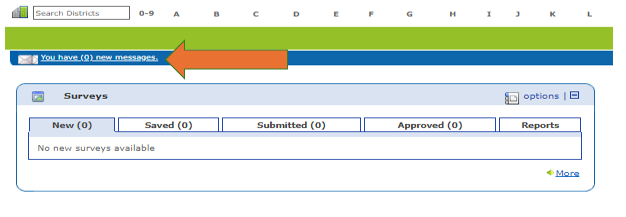
- Inside the portal is a secure email system that allows users to share information with Personally Identifiable Information which should not be shared in regular email.
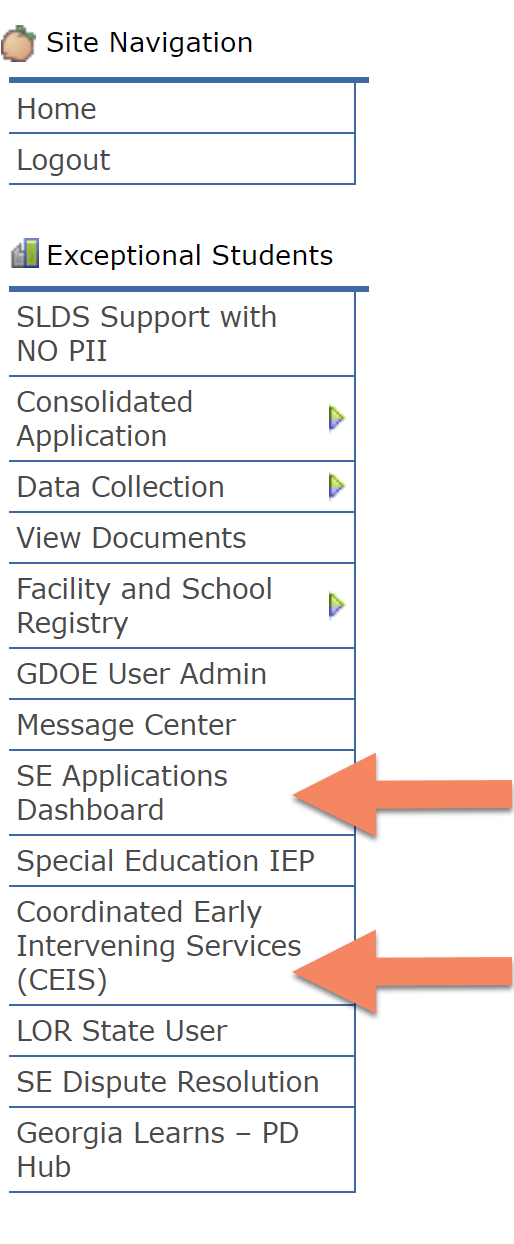
On the left side of the GaDOE portal is a column showing the different requested and approved applications available for the logged in user. The applications which a person needs are dependent upon the person’s role and responsibilities in the LEA. Special Education Directors access the SE Applications Dashboard from this list.
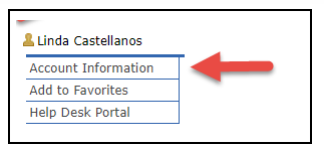
If you need access to the SE Applications Dashboard, but do not currently have it, your account may be edited by selecting Account Information under your name in navigation bar on the left of the screen.
Then select the Edit button.
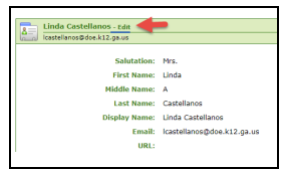
There are four steps to for Requesting a Role:
Step 1: Enter User Information
Step 2: Select Districts and Roles
Step 3: Select Applications and Roles
Step 4: Request Submission Summary

The first step is to review your user information and edit your profile. Then at the bottom of the first page, select the green button and move to Step 1: Request Roles. Review your current roles before moving to the next page.
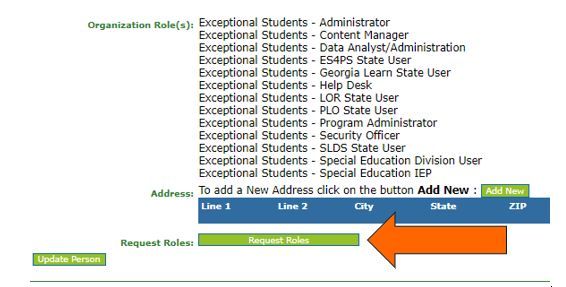
- Select the yellow NEXT button on the bottom right side of the page to move to Step 2: Select Districts and Roles.
- Step 2: Select the District radio button and select your District from the lookup list.
- Under “Roles for Selected Organization”- Select Exceptional Students: Special Education Director (unless it is already selected)
- Select the NEXT yellow button on the bottom right side of the page to move to Step 3: Select Applications and Roles
- Request Organization Role
- Request the Application Role of SE Applications Dashboard- Special Ed. Director.
- Then select the yellow NEXT button at the bottom of the page.
- Select SUBMIT on Step 4: Request Submission Summary, and wait to receive an email that your requests have been approved. If you have not received a response in 2-3 days, please send an email to your District Liaison or GO-IEP Liaison.