Additional Technical Support and Improvement (ATSI)
Additional Targeted Support and Improvement (ATSI)
Rationale for ATSI Quality Review of SWD Student Records
As part of the support from the Georgia Department of Education for Additional Targeted Support and Improvement (ATSI) schools, the Office of School and District Improvement has partnered with the Division for Exceptional Children (DEC) to provide a quality review of Individual Education Programs (IEPs) for students with disabilities (SWD) at each identified ATSI school.
This process differs from the review that takes place during Cross-Functional Monitoring. Although there may be some items which will require correction, this review is focused on gathering information to provide technical assistance to ATSI schools in improving outcomes for students with disabilities.
Student File Review
From the March FTE-3 report, GaDOE randomly selects student names and provides the list to Local Education Agency (LEAs) through the Special Education (SE) Applications Dashboard. Student records are reviewed by GaDOE using the ATSI Quality Review of SWD Student Records Rubric. Depending on the number of ATSI schools in the LEA, each ATSI school will submit two or three randomly selected student IEPs and corresponding progress report. IEPs and progress reports from both the current school year and previous school year will be uploaded for each identified student. The random selection is designed to identify only those students who have IEPs for this FTE period.
Process for Student Withdrawal
If students have withdrawn from the LEA or exit special education (no longer eligible or parent revocation) before the date of the file download, the ATSI application allows for LEAs to request a replacement student for any student who has withdrawn or exited. The LEA may not request a replacement student because his/her IEP is not compliant. The LEA will be asked to provide the withdrawal date or exit date for the student.
Labeling Process
LEAs must upload the following records for each selected student:
- Current school year IEP with IEP progress reports and including transition plan and FBA/BIP, if applicable.
- Previous school year IEP with IEP progress reports and including transition plan and FBA/BIP, if applicable.
Uploaded documents must be labeled as follows:
- Last Name, First Initial – Current school year IEP with IEP progress reports and including transition plan and FBA/BIP, if applicable.
- Last name, First Initial – Previous school year IEP with IEP progress reports and including transition plan and FBA/BIP, if applicable.
Note: Please ensure that all documents are scanned so they are readable by the reviewer.
Procedures
LEAs will complete a submission process through the SE Applications dashboard. IEP documents from GO-IEP will be automatically uploaded once the submit button is activated by the LEA. LEAs not using GO-IEP will manually upload IEP documents once the submit button is activated by the LEA.
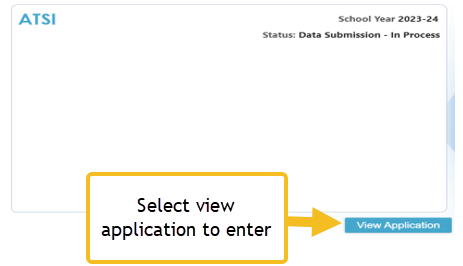
On the portal homepage, scroll until “SE Application Dashboard” is displayed on the left-hand side and then select it. Once you are on the main SE Application, then scroll until you see “ATSI” tile. Select “View Application” to enter it.
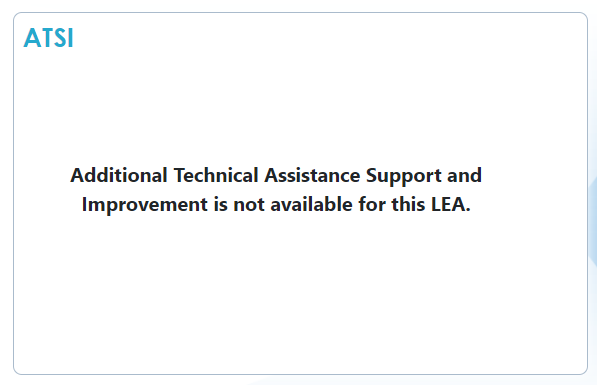
If you see “Additional Technical Assistance Support and Improvement is not available for this LEA,” then your LEA is not required to participate.
LEAs participating will see an “In Process” tile
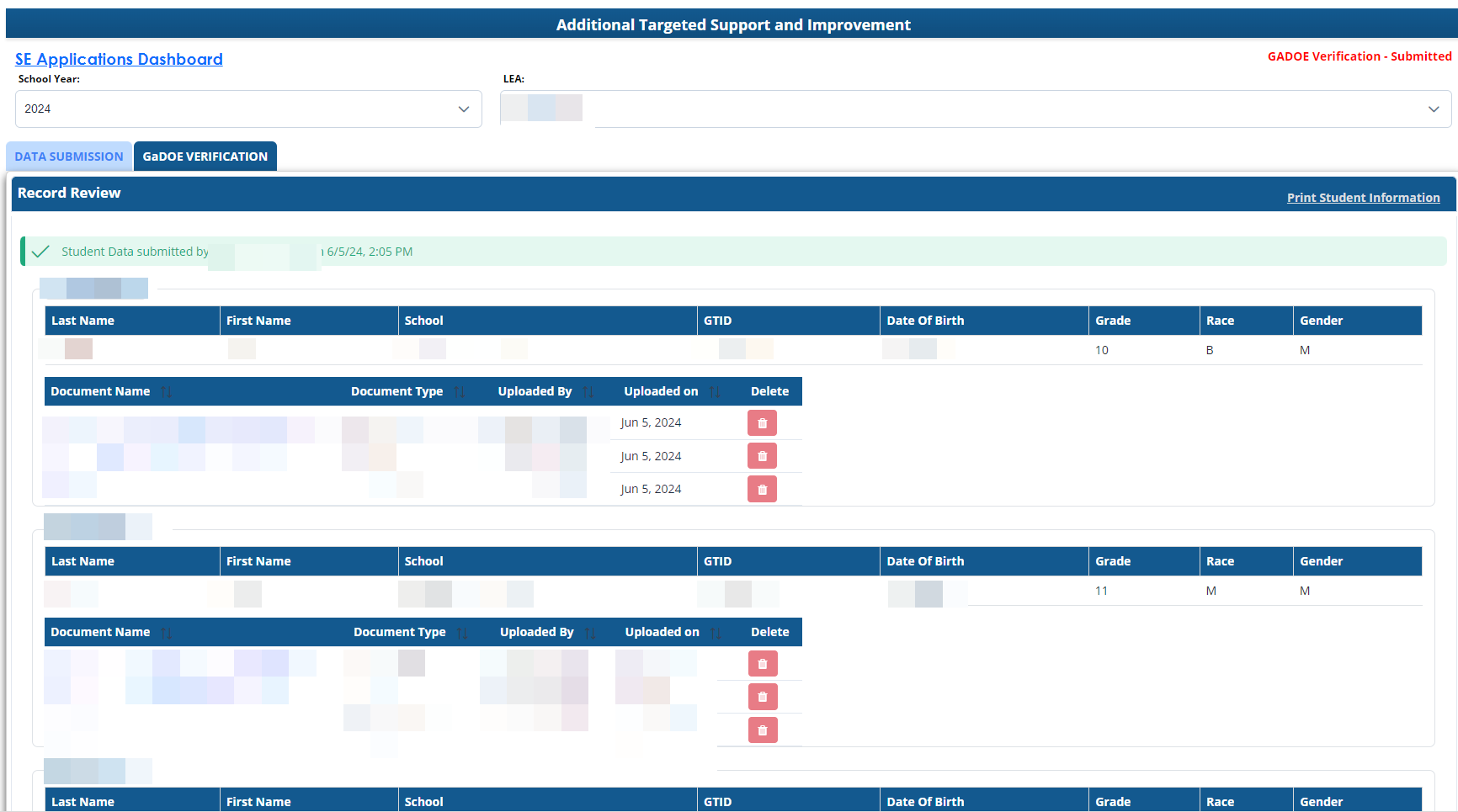
The application will open to reveal the list of names and demographic information (available below). For each student listed, confirm the current year IEP and previous year IEP are uploaded along with current year and previous year IEP progress reports.
Screenshot of the demographic information listed for each student selected

Screenshot of the data submission tab
Upload Student Documents
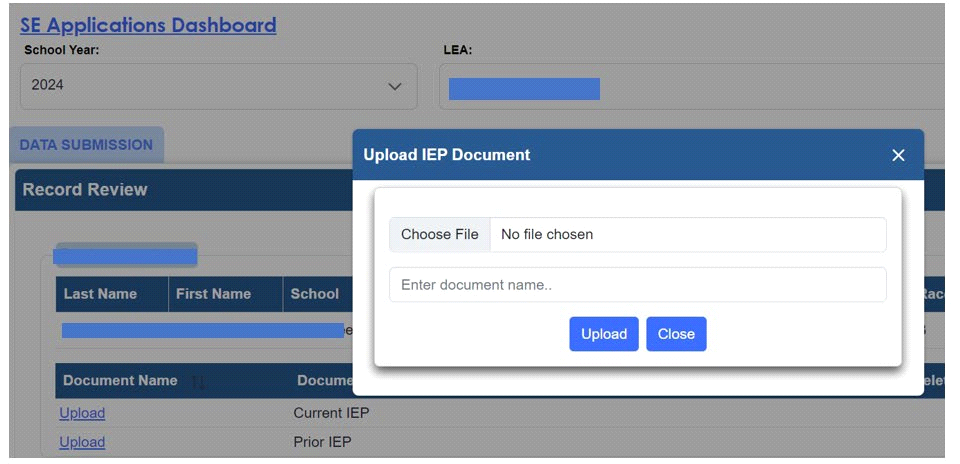
To access student names and upload student documents select “upload” for the designated student. Choose a file to upload. Name the file using the naming conventions required and upload.
- Select “Upload”.
- Select the appropriate file from your computer.
- Enter the appropriate name using the naming conventions listed in this document.
- Select “Upload” in the popup window.
Screenshot of the Upload IEP Document Section
When all documents are verified and uploaded press the submit button.
Completed Files
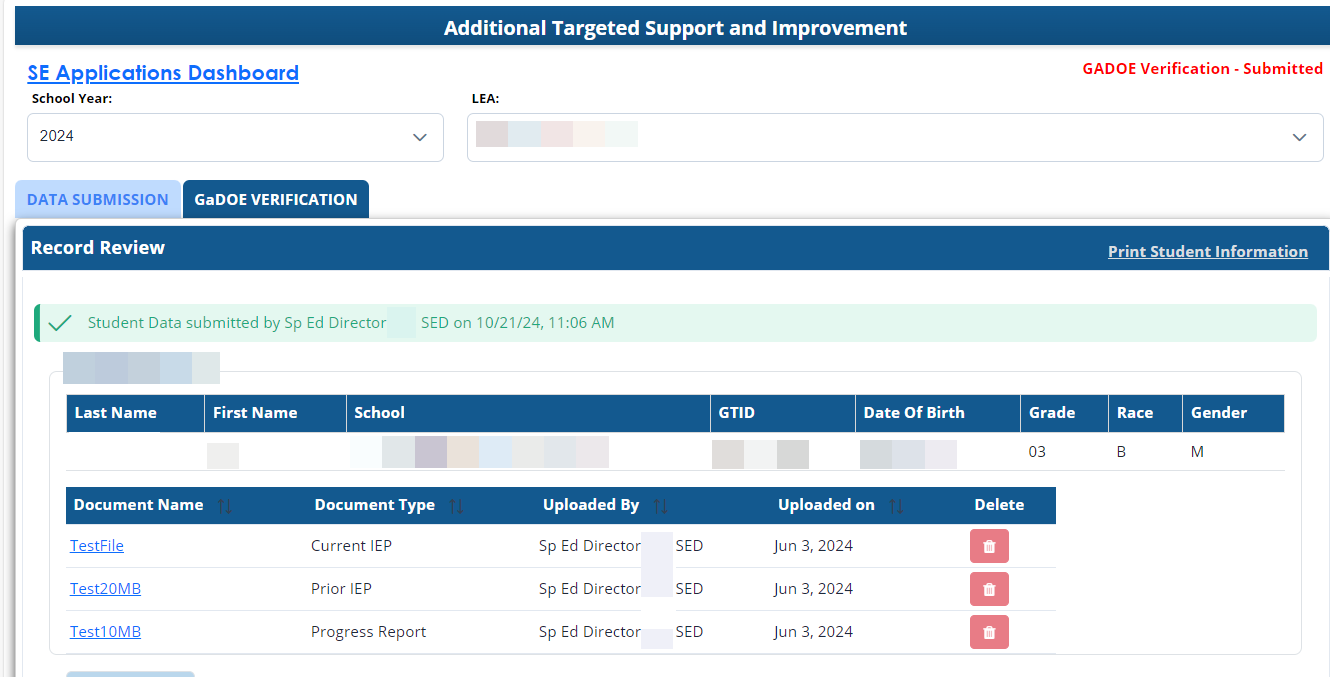
Screenshot of a completed file submission